How to Export a Garmin Walk or Hike as GPX
To export a walk or hike from your Garmin watch as GPX, sync the saved activity to Garmin Connect, open that activity on the Garmin Connect website, then use the settings gear and Export to GPX. You can open the downloaded file in a GPX viewer or keep it with your travel photos.
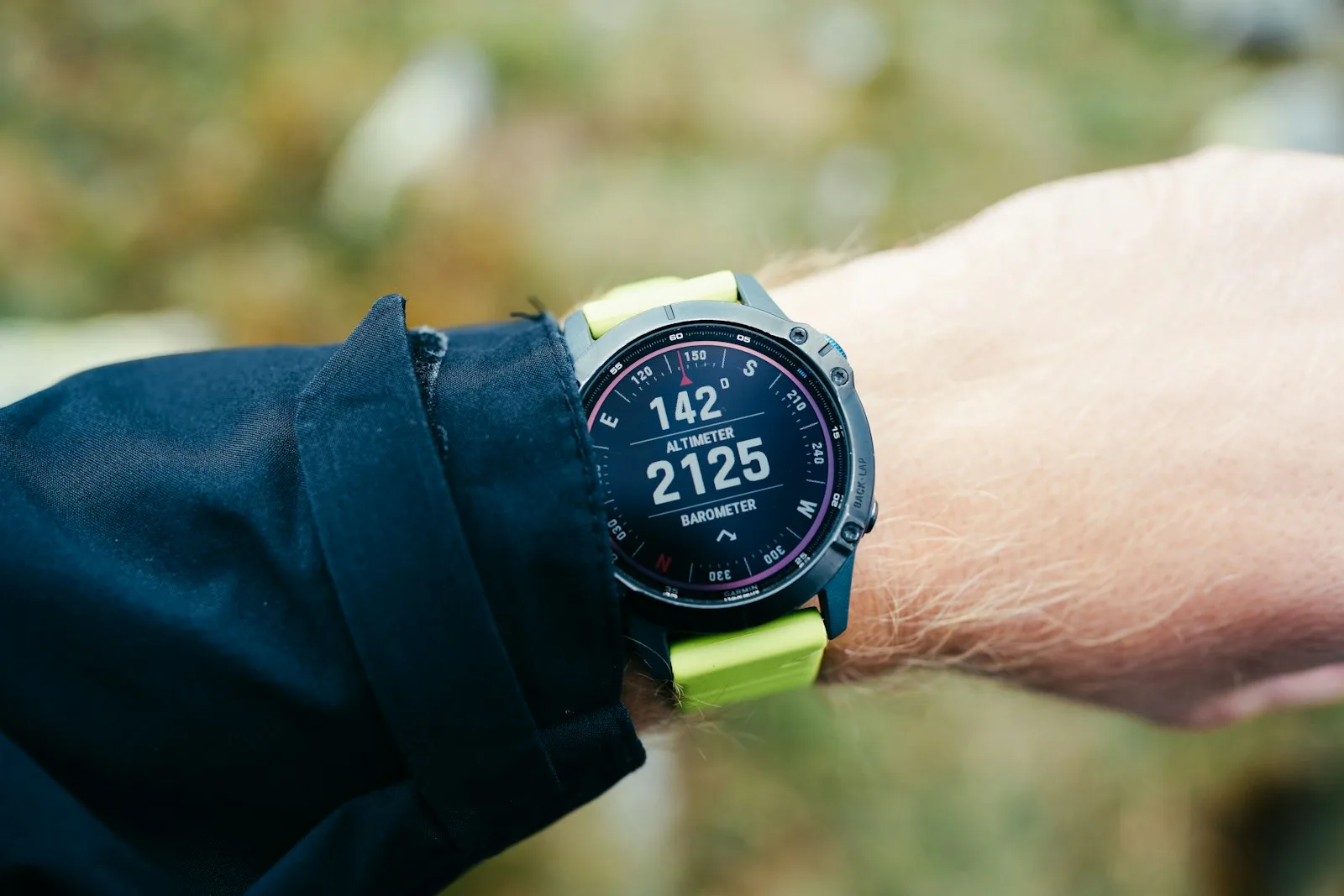
Perhaps you wore your watch for an easy lakeside walk or a day exploring a new city. You want the route as a memory, or a friend has asked where you went. You do not need to turn that outing into a training project to make use of its GPS recording.
Yevhenii Dubrovskyi / Unsplash · License
Start with the activity you actually recorded
Finish and save the activity on your watch, then sync it with the Garmin Connect app. Check that the outing appears under the account you will use on the website. This guide is for a recorded activity with GPS positions, rather than a route you planned for a future walk.
The useful starting point is the saved activity, whether your compatible watch belongs to the Forerunner, Venu or another Garmin family. A watch that counted your indoor steps without recording a GPS track cannot reconstruct the streets you passed afterward.
Download the GPX from Garmin Connect
A computer is usually the easiest way to follow these steps:
- Sign in to the Garmin Connect website with the account used by your watch.
- Open Activities, then All Activities. Select the walk or hike by its date and name.
- Check the activity's map. Make sure you are looking at the right outing and that a recorded route is present.
- Open the settings gear at the top right of the activity page.
- Choose Export to GPX. Find the
.gpxfile in your browser's downloads folder.
These menu names describe the English website; wording can vary with language and updates. Garmin documents the process in its official activity-export instructions.
Use Export to GPX for this workflow. Export Original can give you a different format, often FIT, which the GPX editor below does not open. Changing a filename from .fit to .gpx does not convert it.
See your walk on a larger map
Open Float GPX Editor, click Import GPX and select the downloaded file. On a computer, dragging the file onto the editor also works.
Look for the lakeside loop, the path to the viewpoint or the extra streets you explored. The viewer can show the track and available elevation information. It is free to use, needs no account and processes the GPX in your browser; the map background loads over the network.
Give the file a useful name such as Lake-walk-October.gpx and keep the original alongside your photos or notes. A GPX route copy does not preserve your entire Garmin account, training history or every sensor metric. Keep the original activity in Garmin Connect if those details matter to you.
Make a shorter copy for a friend
Maybe you started recording outside your hotel and only want to share the scenic part. In the editor, select the track, set the start and end of the section you want, then choose Keep range. Export the selected track and click Download GPX when preparation finishes. Save it under a different name so your original stays intact.
Reopen the copy and inspect the whole file before sharing. Cropping the line does not necessarily remove separate waypoints or location details in names and metadata. The trimming guide has the detailed steps.
Send the actual .gpx file if your friend wants to open the route. A screenshot is easier for a quick glance, but cannot be opened as a track. For a future outing, check a current map for access and conditions; an old recording does not guarantee that the same paths remain open.
Keep recording when you leave the watch behind
For a casual walk with just your iPhone, SpeedX offers trip recording and live speed and altitude readings. You can also import a recorded GPX track for review; GPX import and export in SpeedX require Pro. The free web editor remains usable on its own.
To try importing, put the file on your iPhone or iPad, open Trip Log in SpeedX and use the import icon at the top. Review the result: different apps can calculate different statistics, and missing times do not become an original recording when filled in. The companion guide explains the file-handling limits.