Speedometer App Check: Units, Live Readings and Trip Tests
A speedometer app is most useful when you know what its numbers mean. Before a trip, check the unit, whether readings are live, and what happens when you move, stop or lock the screen. A large display and several decimal places cannot answer those questions.
This short field check helps you evaluate a GPS speedometer on your own phone. It is a usability and consistency check, not a measurement of absolute accuracy.
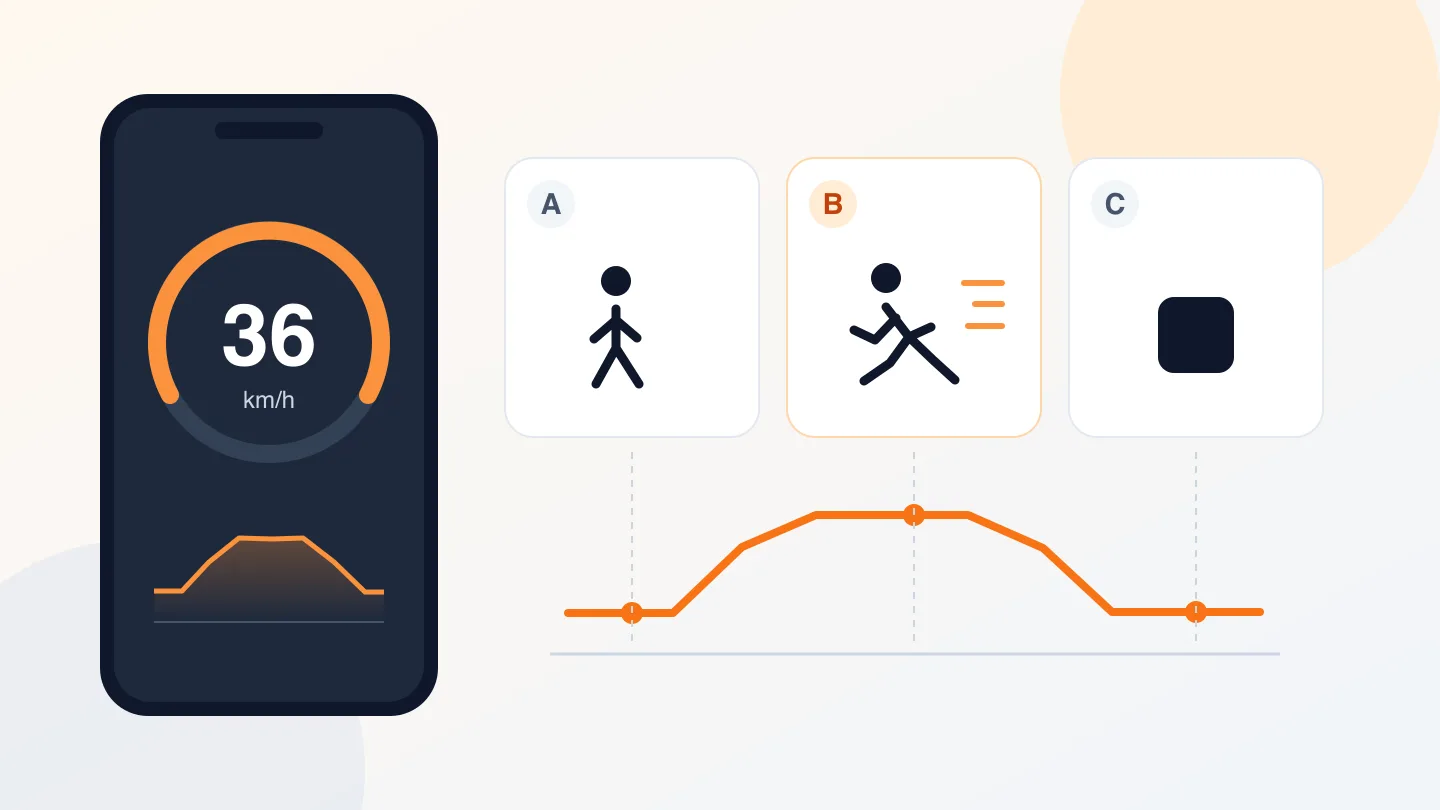
The illustration shows a test sequence, not a SpeedX screen or measured results.
1. Match the speed units first
Check the unit beside the current reading and beside any minimum or maximum value. A speed unit and a pace unit describe motion differently: km/h increases as you go faster, while min/km decreases.
For a conversion example, 10 m/s = 36 km/h ≈ 22.4 mph ≈ 19.4 knots. These are the same speed, rounded for display. Switching units changes the number, not your motion. You can verify conversions with the speed converter.
Do not expect two live screens to match perfectly while switching units: the phone may have moved between updates. Compare a steady section instead.
2. Confirm that speed data is available
Open the app outdoors with a clear view of the sky and grant location access. GPS.gov explains that buildings and trees can degrade reception.
A map dot is not proof of a speed reading. The browser speed field can be unavailable even when coordinates exist. In the current SpeedX web speedometer, missing speed can initially appear as zero before a warning. Zero alone therefore does not confirm a successful stationary measurement.
If speed never appears, use the missing GPS speed troubleshooting guide before judging the app's accuracy.
3. Run a start, steady movement and stop check
Use a safe walking route with space to stop. For a vehicle trip, let a passenger observe the phone and review results after parking.
- Before moving: note whether the app reports live data, a waiting state or an error. Reset any previous session maximum if that control is available.
- Start moving: observe whether speed begins updating. Do not judge the app from the first update alone.
- Keep a steady pace: look for a sustained range rather than matching every digit on a second display.
- Stop safely: watch several updates. Record whether the value settles, keeps fluctuating or stays frozen.
- Repeat the same route: keep the phone, unit and carrying position the same. Change one condition at a time if results differ.
A single high maximum does not describe the whole trip. Check whether a fast section actually occurred and whether surrounding readings support it. A maximum that cannot be explained deserves investigation before you share it as a result.
4. Read the accuracy label in the right unit
The current SpeedX web tool displays location accuracy in meters. That is a position estimate, not a ±km/h error bound. A label such as ±5 m does not mean the speed is accurate to ±5 km/h, and it does not certify a maximum-speed record.
Likewise, a tenth of a km/h on screen is a display increment, not a promise of that measurement accuracy. Use the start and stop check to understand behavior; use a suitable independent reference if you need to quantify error.
5. Test interruptions before a longer trip
Try locking the phone and switching away, then return to the app. Check whether you have fresh readings and, if you are recording, whether the saved trip has a gap. Test the exact version and settings you will use; a browser tab and a native app can behave differently.
If an interface exposes a last-update time, inspect it. The browser position timestamp describes when a position was acquired. A changing timer or animated dial alone does not establish that a new measurement arrived.
For a final sense check, a hypothetical 2 km route completed in 6 minutes averages 20 km/h: 2 ÷ (6/60) = 20. Compare this only with a trip average using the same distance and time interval, not with a current or maximum reading. The standalone SpeedX web speedometer does not calculate that distance-based average.
Try the check with SpeedX
The online speedometer provides current, minimum and maximum speed, elapsed time and a recent speed chart. Use it for a short foreground check on a device that supplies speed data. For an installed iPhone option, see SpeedX on the App Store, then repeat the checks in that app.
Keep a short note of the phone, app or browser version, unit, route and interruption behavior. That makes a second test more useful than comparing two unrelated screenshots.