How to Find Places You Passed on a Walk: Use Your Recorded Route
To find a place you passed on a walk, start with your saved route and narrow it down using a photo, an approximate time or a nearby landmark. If you never recorded the walk, check existing photo locations and any location history you had already enabled. Installing a tracker afterward cannot reconstruct an unrecorded journey.
You remember a little bookshop after a bridge, but not its name. This happens on holiday and on an afternoon exploring an unfamiliar neighborhood close to home. A walking route gives those memories a location to work from.

If you recorded the walk in SpeedX
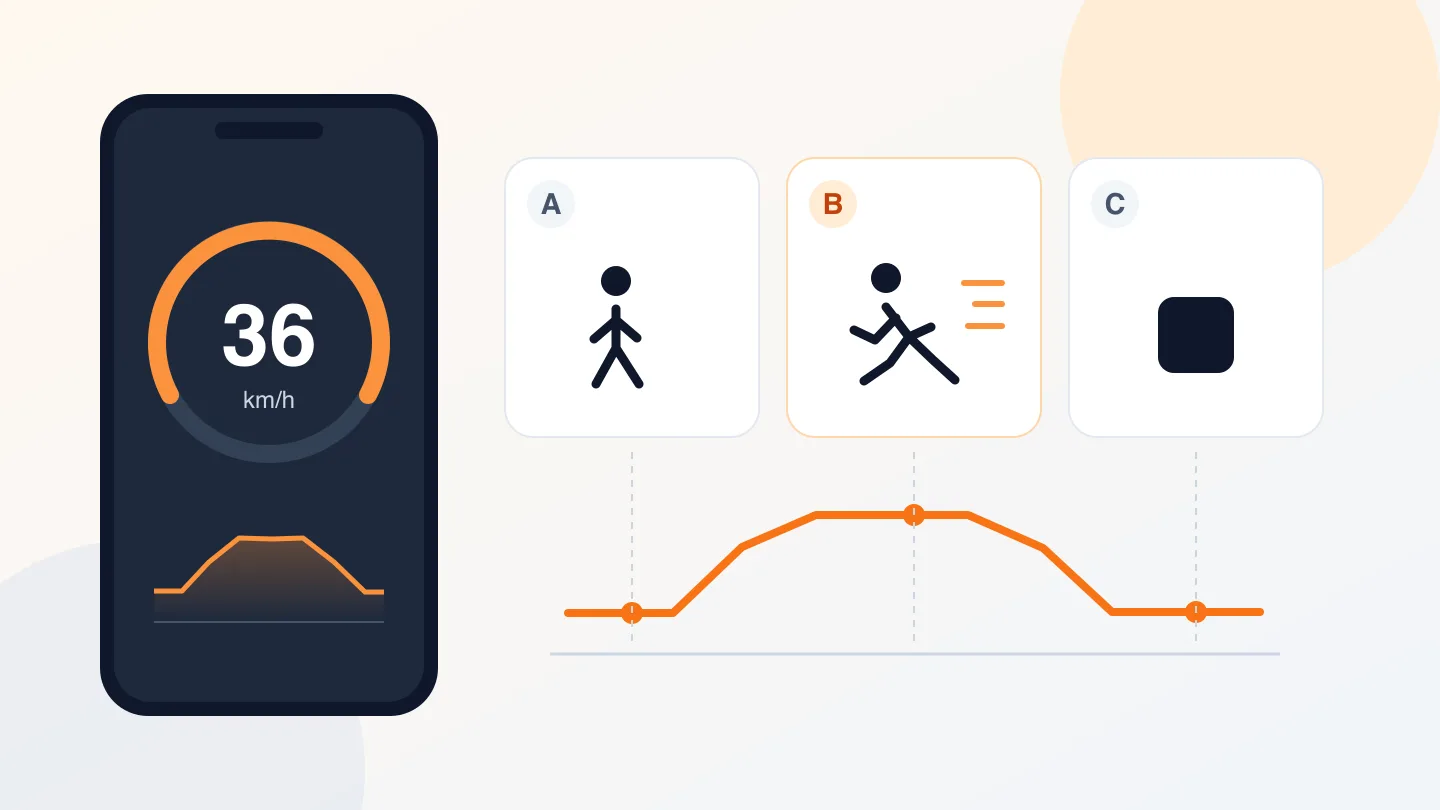
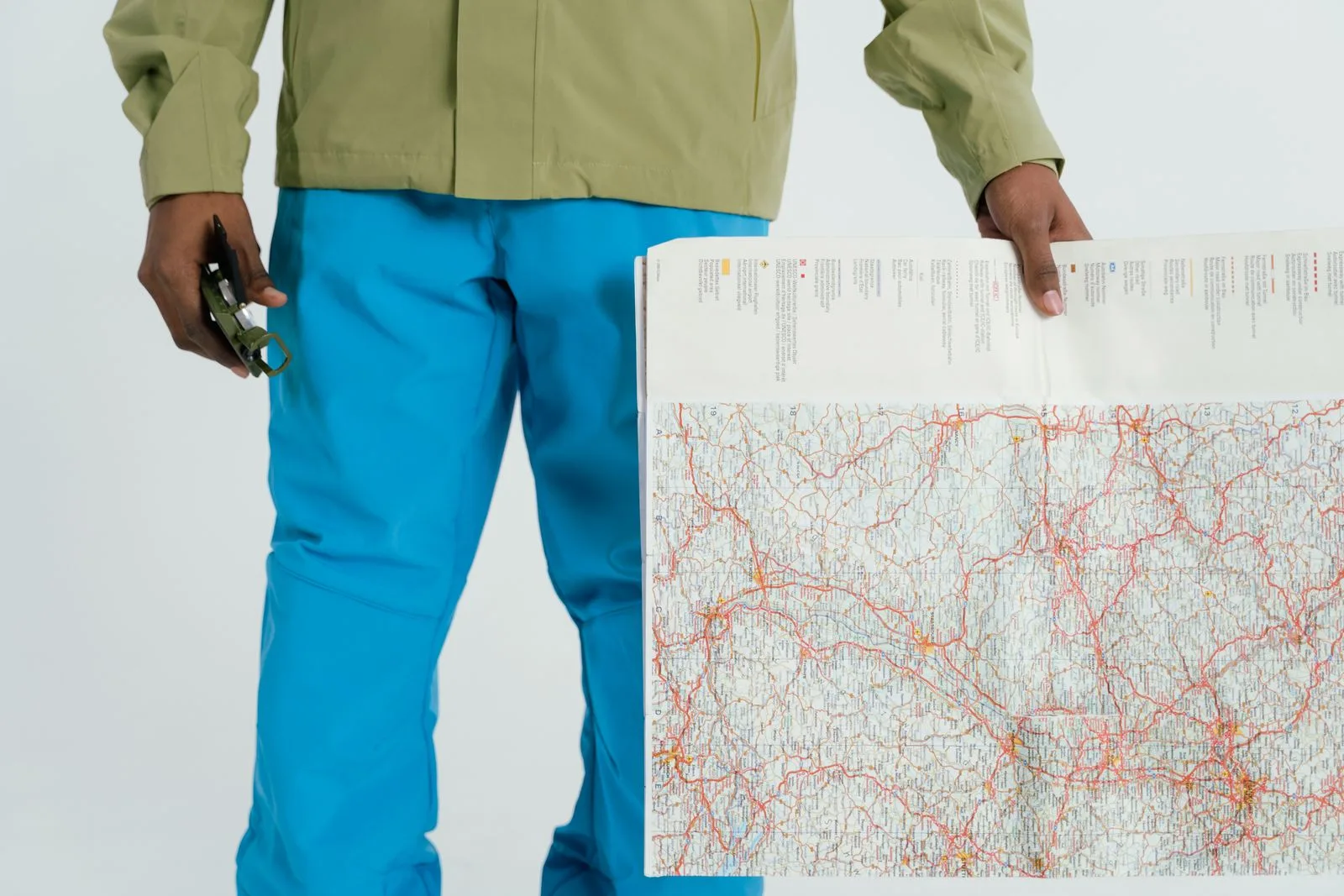
Open the saved trip that matches the outing. Compare its route map with the part of the day you remember: before lunch, after crossing the river or near the end of the walk. The SpeedX App Store listing describes trip recording and speed and altitude details for individual recorded points. Those details help put a section of the journey in context; they do not identify a business by themselves.
- Find an anchor. Start with a station, bridge, park entrance or other place you recognize on the route.
- Follow the sequence of turns. Compare the streets after that anchor with your memory. If the walk doubled back, check both passes.
- Match a photo or time clue. A shopfront photo, receipt or message can narrow the search. Check time zones if photos and records came from different devices during an overseas trip.
- Confirm the actual place. Search that short section in a map app. Compare the shopfront, address and neighboring buildings before saving a pin there.
For example, suppose you crossed a bridge, visited a bookshop and then took a park photo. Find the bridge and park on the saved route; the streets between them become your search area. This is an illustrative method, not a guarantee that the route reveals the correct entrance.
If you did not record the route
Look for evidence that already exists. Apple's guide to browsing photos by location explains how photos with embedded location information can appear on a map. Check a photo taken near the place, then inspect surrounding streets. Not every photo contains location data.
Also check any location history you had enabled before the outing, saved map pins, bookings, receipts and messages. A remembered station exit or riverside path can connect these fragments. If none of these contain usable clues, the exact route may remain unknown.
Make the next discovery easier to find
Start a SpeedX trip before you begin wandering and check that the map is recording your movement. Before a long outing, try a short walk with the screen locked and reopen the app to confirm the record continues under your device's settings.
At a place you want to revisit, take a photo of the sign or save a pin in your map app. Add a short note in your notes app if needed: “bookshop after the footbridge.” These are separate aids; this workflow does not rely on SpeedX automatically recognizing shops or attaching photos to route points.
Finish and save the trip, then check that the section you care about is present. SpeedX also lists GPX export and local trip backup; keep a backup if you want to retain the recording when changing phones.
When the line on the map is ambiguous
A recorded point can land on a neighboring street. GPS.gov explains that buildings, bridges and trees can worsen positioning accuracy. Use the route to narrow an area, then verify the destination using signs and other clues. A gap in the track does not prove which alley you took.
Before sharing a route or GPX file, check whether it reveals your home, hotel or other personal stops. A recorded route is a memory aid; return directions should still come from a current map that reflects access and street conditions.
Related tools and reading
- Record a city walk with speed and elevation context
- Read and share GPS coordinates correctly
- Check your current coordinates in the browser — a current-location tool, not a saved trip archive.