How to Use iPhone to Check Speed and Record Trips
The answer is: Use SpeedX app
First, launch the SpeedX app.
The app requires location permissions to access your speed and current location for display and Trip Recording. For this session, grant the "Allow Once" permission. Once granted, the app will show your current speed and related information.
Now, if you’d like to record a trip, tap the "Record" button in the bottom right corner.
This will start recording your trip, and a notification will pop up saying "Trip recording started."
After recording begins, even if you switch the SpeedX app to the background, SpeedX will continue tracking your trip.
You’ll see a notification in the status bar indicating that location data is being collected in the background.
Tap this notification to return to SpeedX anytime.
When you’re ready to stop recording, tap the "Stop" button on the SpeedX home screen in the bottom right corner.
A confirmation prompt will appear—select "End" to finish the trip recording.
Once the trip recording ends, location data collection stops.
Head to the "Trip Log" page to view all your previously recorded trips, including the one you just finished.
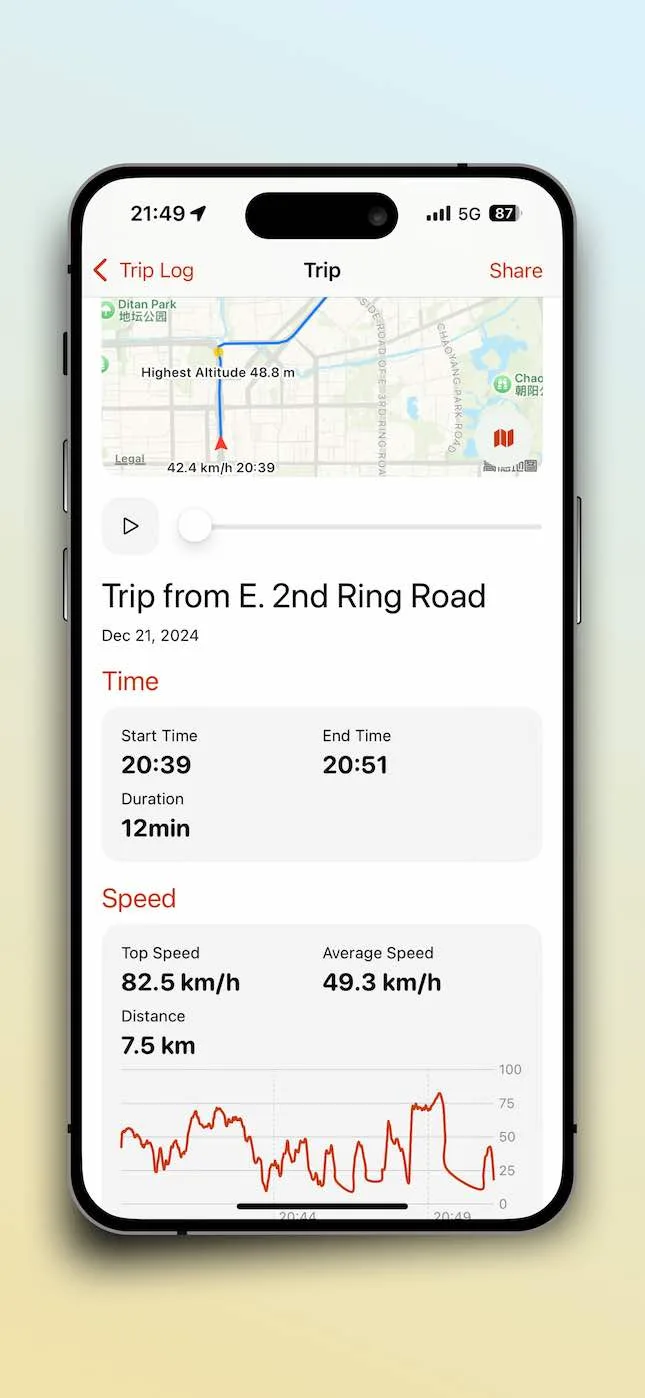
On the trip details page, you can see the route of your recorded trip on the map, along with other information.
You can also tap the share button in the top right corner to share the trip.
Related Articles
2026-10-22
Record a City Walk: Keep Your Route, Walking Speed and Elevation
Turn an unplanned city walk into a useful record. Learn what a route, speed readings and elevation can tell you, and how to review a SpeedX trip afterward.

2026-10-01
Average Speed vs Moving Speed: Why Stops Matter
Calculate average and moving speed with a worked example and understand why pauses and recording settings change trip statistics.
2025-12-02
Trip Tracker App: How to Track My Trip with SpeedX
Learn how to track your trips with SpeedX, the ultimate trip tracker app. Record GPS routes, monitor speed and altitude, and create shareable trip cards of your adventures.