How to Photograph a Phone Screen Outdoors Without Losing the Digits
To photograph a phone screen outdoors, start by changing the reflection angle and making the display large enough in the frame. Then focus on the digits and adjust exposure from a test photograph. Turning the brightness all the way up will not solve every problem.
For a SpeedX altitude or location portrait, one device displays the information and a separate phone or camera takes the picture. Prepare both before arranging the pose.
1. Prepare the screen you are photographing
Open the information you want to show in SpeedX for iPhone. Confirm that a current, usable reading is present and keep the unit visible. Clean the display and the photographing camera's lens. Choose a brightness that you can read in the existing light, and keep the screen awake for the shot.
Frame only the relevant information. If notifications or unrelated personal details are visible, clear them before starting. A photograph should show the reading you intended, rather than everything on the device.
2. Move the reflection before raising brightness
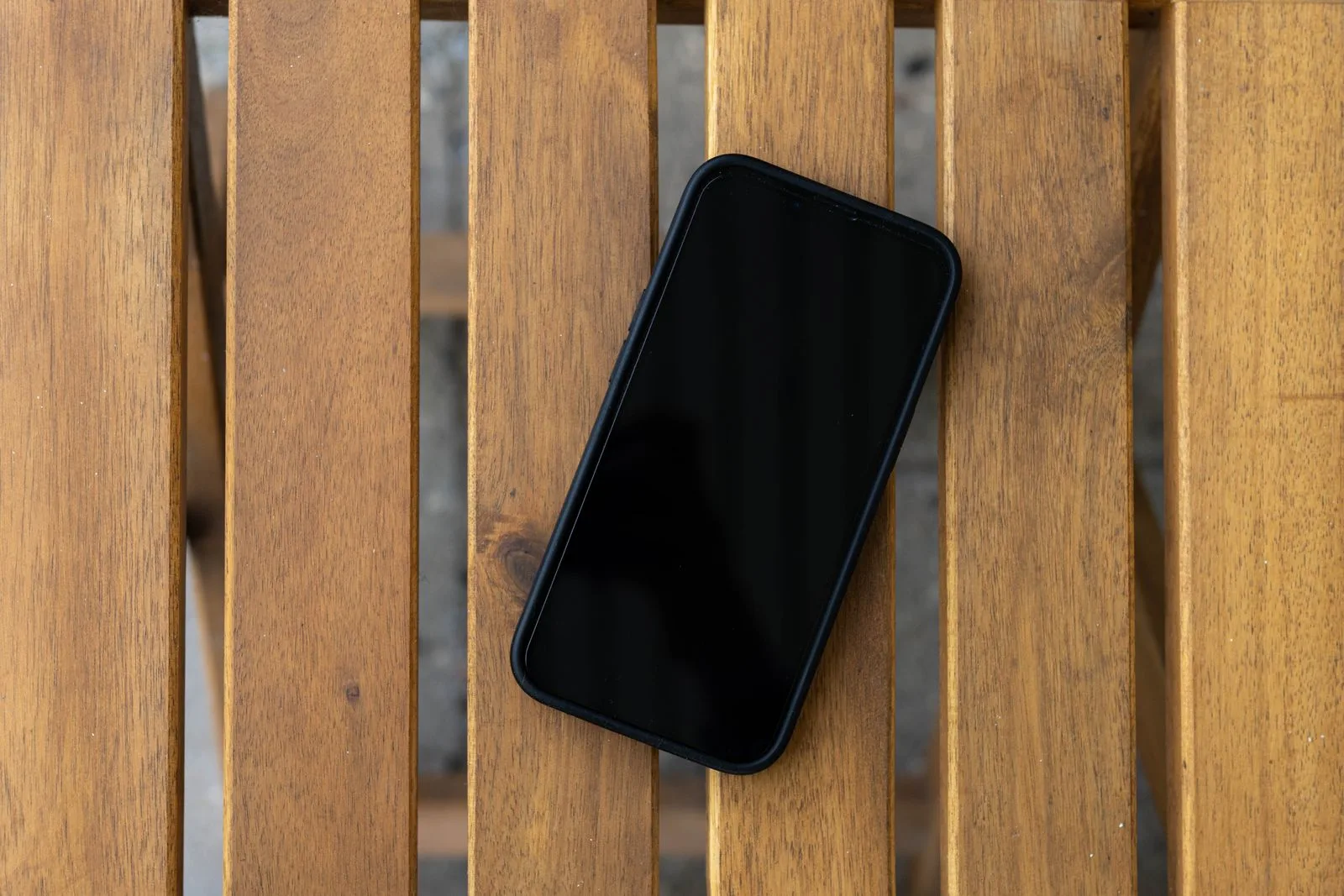
If the screen looks like a mirror, gently tilt it while the photographer watches the preview. Turn a little away from the brightest patch of sky, or try a position with more even light. Keep the angle shallow enough for the digits to remain easy to see.
Use a test shot with the flash off. Direct flash can create another reflection. Raising screen brightness may help readability, but when the picture turns into a white rectangle, increasing it again is unlikely to help. Change the angle or light first.
3. Make the display big enough and keep it steady
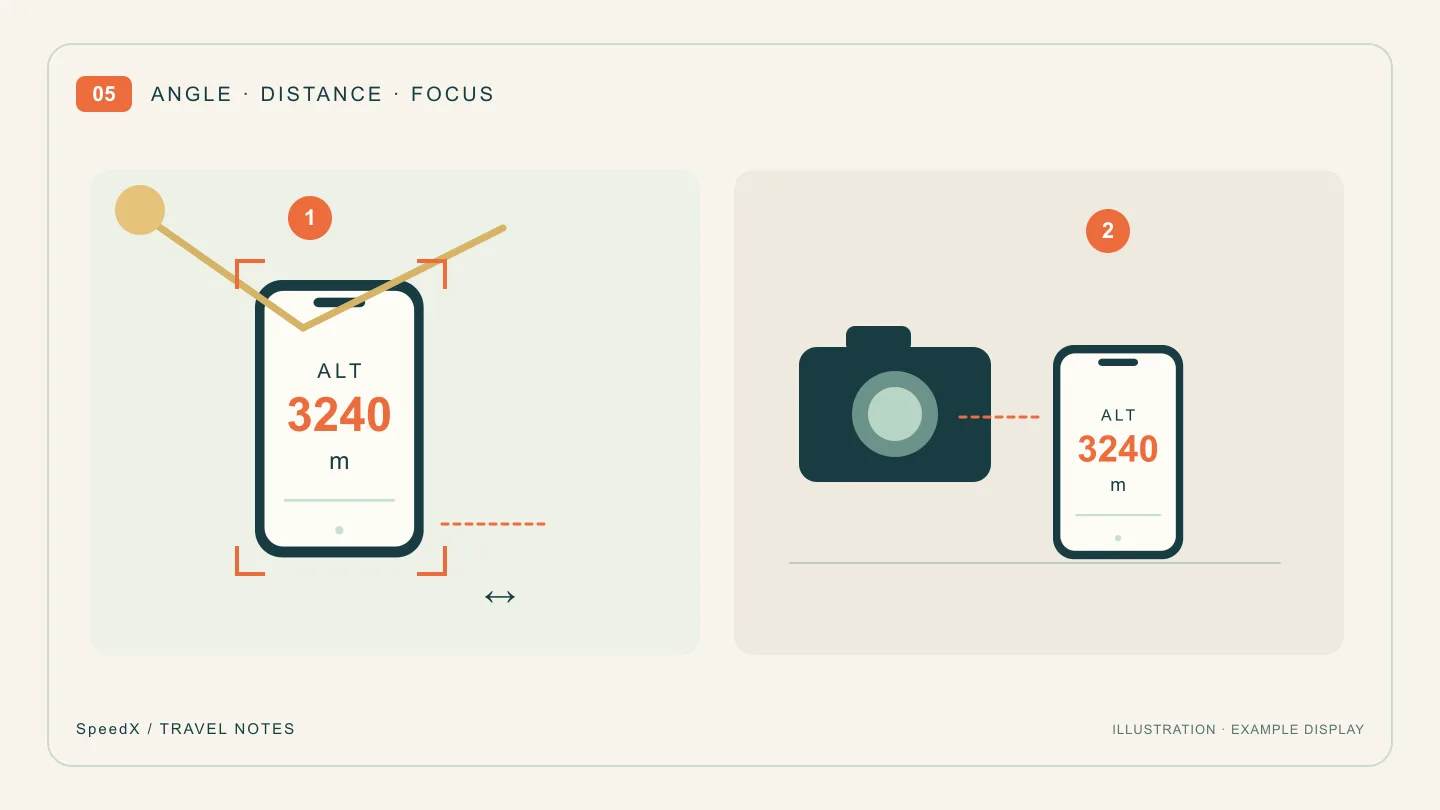
Bring the camera closer or choose a tighter composition. Check that fingers do not cover the number or unit. Hold the display near your upper torso when your face also matters; pushing it much closer to the lens gives the camera two very different focus distances.
Start in ordinary Photo mode. Portrait blur may soften the screen or its edges. If a close screen is sharp but the mountain is not, take a second wide photograph of the view. One frame does not have to preserve every distant detail.
4. Set focus, then check exposure
On the photographing iPhone, tap the screen's digits in the preview to choose the focus area, then adjust exposure beside it. Apple's camera setup guide explains these controls and AE/AF Lock. The exact controls vary with device and software.
If the digits disappear into a bright display, try reducing the photographing camera's exposure. Check the face and background too: an exposure that saves the screen can make the rest too dark. Changing to more even light may produce a better balance than further adjustment.
Take a test and enlarge it. Look separately for readable digits, a visible unit and an acceptable face. Small preview images can hide blur.
5. Identify what still looks wrong
- Sky or faces reflected on the display: change the screen angle or the lighting position.
- Soft digits: steady both devices, enlarge the display in the composition and refocus.
- A white display: reduce exposure or screen brightness, checking the whole photograph after each change.
- Lines or patterns across the display: try a different angle or distance and take several still photographs. Results depend on the display and camera; there is no universal setting.
- Reversed lettering in a selfie: inspect the saved image, not only the preview, and check the camera's mirroring behavior before relying on that setup.
If you only have one phone
Keep a screenshot of the reading and a separate landscape photograph. You can arrange them together afterward and identify the result as a collage. A timer on the same phone does not let its rear camera photograph its own display.
Once the screen is legible, use the altitude portrait compositions. If the altitude itself is questionable, first read why stationary readings drift. A clear photograph preserves a reading; it does not make that reading more accurate.